
5 Fundamental Principles for a Sustainable WordPress Website
Discover five core principles for building a WordPress website that is sustainable, resilient, and ready to adapt to future technology changes.

Have you ever felt that something was off with your WordPress website, but you could not immediately identify the problem? It might be infected with malware.
WordPress malware is one of the most dangerous security threats a website can face. What makes it worse is that many infections work silently, damaging your site without obvious warning signs.
According to a recent WPScan report, more than 70,000 websites were found to have at least one malicious file during 2023. Most infections came from weak or leaked credentials and nulled plugins.
In this article, I will cover 7 hidden signs that your WordPress site may be infected with malware, and of course, how to fix it effectively.
One of the first signs people miss is a website that suddenly becomes very slow. If your site used to be fast but now feels like a snail, malware may be the reason.
Why does this happen? Malware often consumes server resources for harmful activity such as sending spam or joining a botnet for DDoS attacks. As a result, the server has less capacity left to run the website normally.
What to do:
A sudden traffic spike or drop that you cannot explain may be another sign.
Why does this happen? Malware can cause traffic spikes through redirects or spam content. On the other hand, if Google detects malware on your site, it may lower rankings or remove the site from search results, which can cause traffic to fall sharply.
According to security research, around 43% of internet users avoid websites that are flagged as dangerous by their browser.
What to do:
If you discover new posts, pages, or even admin users that you did not create, that is a strong sign of malware infection.
Why does this happen? Attackers often create spam content or malicious content after gaining access to your site. They usually add new admin users so they can keep access even after the first breach is found.
What to do:
One of the clearest signs of infection is when visitors, or even you, get redirected to an unknown website.
Why does this happen? Malicious redirects are a common tactic used by attackers to send traffic to phishing pages, malware downloads, or adult sites. This damages both the visitor experience and your site reputation.
What to do:
.htaccess file for suspicious redirect rulesfunctions.phpIf you start getting bounce warnings or complaints about spam from your domain, your WordPress site may be compromised.
Why does this happen? One of the main uses of malware is sending spam email through your server. Attackers like using trusted domains to bypass spam filters. That not only wastes server resources but can also damage your domain’s email reputation permanently.
According to recent security data, more than 90,000 malware attacks happen every minute across the internet, and many of them aim to take over email servers.
What to do:
If Google Search Console sends a security alert, or if visitors begin seeing browser warnings when they open your site, that is a strong sign your website is infected.
Why does this happen? Google and popular browsers such as Chrome, Firefox, and Safari actively scan and flag infected websites to protect users. If your site gets flagged, traffic and trust can drop quickly.
What to do:
If you notice code changes in WordPress files that you did not make yourself, that is a warning sign that your site may be infected.
Why does this happen? Attackers often modify core WordPress files, theme files, or plugin files to insert backdoors or other malicious code. This gives them ongoing access even after you change passwords.
What to do:
wp core verify-checksum if you use WP-CLIIf you find one or more of the signs above and are sure your site is infected, take these steps:
The first step is to put the site into maintenance mode to prevent more damage and protect visitors from exposure.
Always back up before making major changes, but be careful not to overwrite a clean backup with an infected one. Ideally, you should have a backup from before the infection happened.
Learn how to back up your WordPress website properly in our article about why WordPress maintenance matters.
Use a reliable malware scanning tool to identify infected files and code. Sucuri SiteCheck is a free online tool that can help detect problems on your website.
Once you identify the infected files, you need to clean them. That may involve:
After the site is clean, strengthen its security:
For more WordPress security guidance, read our article about how to keep a WordPress website safe.
If Google flagged your website, submit a reconsideration request after the issue has been cleaned up.
If malware has been active for a long time, hackers may have created spam pages that are already indexed by Google. This is a serious issue that is often missed during cleanup.
site: operator in Google by searching site:yourdomain.com to see all indexed pagesDocument All Suspicious Pages
Remove Malicious Content from the Website
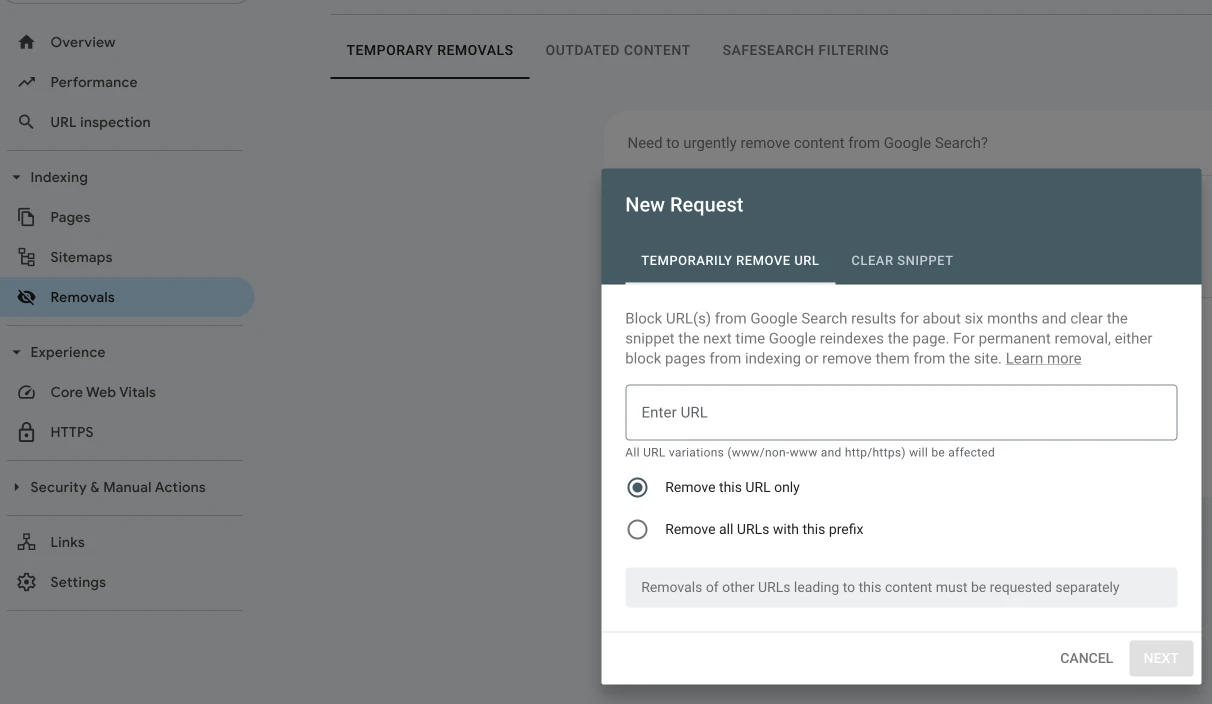
Prioritize URL Removal in Google Search Console
Redirect Removed Pages
Redirect 301 /old-spam-page.html /Additional Methods if Needed
Redirect 410 /old-spam-page.html<meta name="robots" content="noindex, nofollow">Monitor Google Indexing Regularly
Remember that removal from Google can take anywhere from a few days to several weeks. Be patient and keep monitoring until the harmful pages are fully gone from search results.
Detecting malware early can save a lot of time, money, and stress. By knowing these hidden signs, you can act quickly to protect your website and visitors.
Unfortunately, WordPress malware attacks are becoming more advanced and harder to detect. That is why strong security practices and regular monitoring matter, even when everything looks fine.
If you are not sure whether your site is infected or you do not have the technical skills to clean it yourself, our WordPress malware removal service can help. We have years of experience handling different kinds of infections and can restore your website quickly and effectively.
When it comes to WordPress malware, prevention is always better than cure. Invest time and resources in securing your website now, and you will save yourself many problems later.

Founder of Harun Studio, web developer, blogger, and hosting reviewer. He helps business owners build healthier websites through design, development, and long-term maintenance.
Explore more insights that connect closely with this topic.
Discover five core principles for building a WordPress website that is sustainable, resilient, and ready to adapt to future technology changes.

A WordPress maintenance guide from the basics to weekly practice: updates, backups, security, and when it makes sense to use professional support before the website gets slower.
Explore why WordPress maintenance matters for your website's security, performance, and stability.